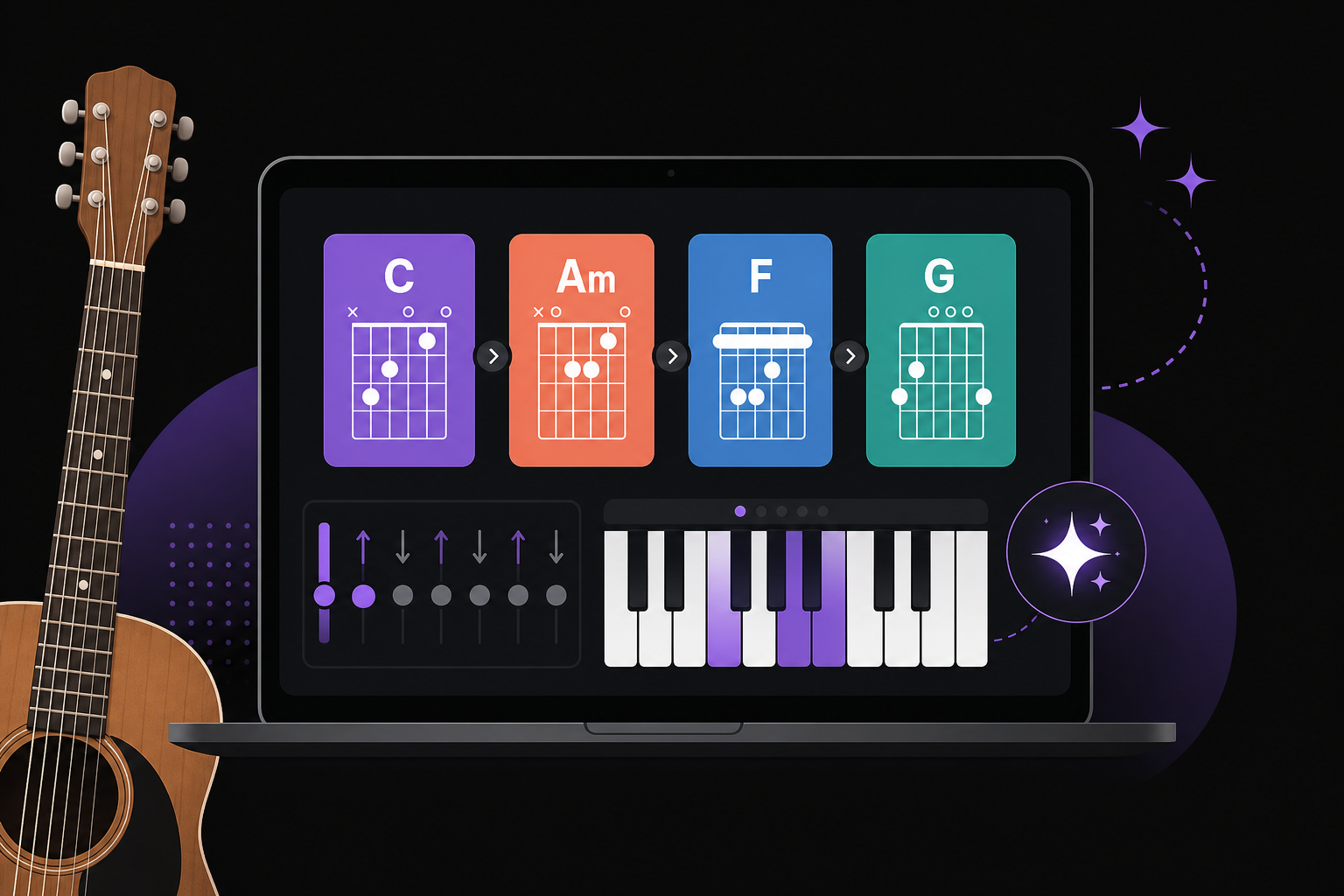
ChordForge AI Chord Studio is the heart of the platform. It lets you explore chords in any key, see exactly where to place your fingers on guitar or piano, hear accurate voicings, and — with ChordForge Pro — generate full progressions from a text prompt or uploaded sheet music.
This guide covers the free features first, then explains how Pro fits in. No account is required to browse basic chords, but you will need to log in to subscribe and unlock AI generation.
Opening Chord Studio
From the top navigation, click Chord Studio or go directly to chordforgeai.com/generator. The page loads with a default key (usually C major) and a set of diatonic chords for that key displayed as cards along the bottom or side of the interface.
Think of the layout in three zones:
- Sidebar — key, scale, chord type filters, and playback controls
- Main display — large chord name, intervals, and fretboard or piano visualizer
- AI dock — prompt box and sheet-music upload (Pro only when locked)
Choosing a key and scale
Use the root note and scale selectors in the sidebar to change the harmonic context. For example, switching from C major to G major updates every chord card to diatonic chords in that key. This is useful when you are learning a song in a specific key or transposing a progression mentally before you play it.
Common workflow for beginners:
- Pick the song's key (ask Google or use your ear — our tuning guide helps with fundamentals).
- Select major or minor scale to match the song mood.
- Tap through chord cards and listen to each voicing.
Reading the chord display
When you select a chord card, the main panel shows:
- Chord name — e.g. C Major, Am7, F#dim
- Intervals — which notes build the chord (root, third, fifth, extensions)
- Visualizer — guitar fretboard dots or piano keys highlighted in blue
The guitar view shows sensible finger-friendly voicings near the middle of the neck. The piano view spans multiple octaves so you can see bass and treble color at once. Toggle between guitar and piano using the view buttons — both update instantly when you change chords.
Playing chords and progressions
Chord Studio can play individual chords or run through a sequence. Use the play controls to hear timing and voice leading between changes. This helps when you are learning a new progression by ear — you hear the movement between chords without guessing strum patterns.
For structured rhythm practice, open the metronome in another tab and play along with the generated sequence at a comfortable BPM.
Using the AI dock (ChordForge Pro)
At the bottom of Chord Studio is the AI dock. On the free tier it appears locked with an upgrade message. With Pro active, you can:
- Type natural-language requests ("ii-V-I in Bb major", "chords to Infrunami by Steve Lacy")
- Upload a photo or screenshot of sheet music, lead sheets, or tab
- Receive a full progression with sections, detected key, and playable chord cards
Log in and subscribe to Pro from the upgrade button, or visit Settings after checkout.
Enter a prompt in the AI text field — be specific about key, genre, or song title when possible.
Optionally attach sheet music using the upload button. The AI reads chord symbols left-to-right.
Press send. New chord cards populate the studio. Click any card to study voicings or play the sequence.
For a full breakdown of pricing, billing, and Pro features, read What Is ChordForge Pro?
Practice ideas with Chord Studio
Diatonic drill
Stay in one key and cycle I–ii–iii–IV–V–vi–vii°. Say the chord names aloud as you switch cards. Do this daily for five minutes to internalize key centers.
Ear training
Play a chord without looking at the name. Guess major vs minor, then reveal the card. Gradually add seventh chords and extensions.
Song prep
Use Pro to pull chords for a cover you are learning. Edit mentally if needed, then practice with the Speed Studio looper for hard sections.
Troubleshooting
- No sound? Check browser tab mute and system volume. Click the page once — some browsers block audio until user interaction.
- AI locked? Confirm you are logged in and Pro is active under Settings.
- Wrong key on a song request? Name the artist in your prompt. You can also set the sidebar key manually after generation.
Ready to try it? Open Chord Studio now, pick a key, and explore your first progression. For more guides, visit the Newsroom.
Open Chord Studio